CBIC Quick Start Guide for PPMS Account Setup
The CBIC will soon (tentatively 9/1/2023) be moving to Stratocore PPMS for all instrument reservations and services. This is a Yale wide system that will be used by all Yale instrument centers. It is highly recommended that you setup your PPMS account in advance, as you will need to have an active PPMS account to be able to continue accessing the CBIC when it moves to the new system. You will also need at least one financial account number authorized in PPMS to use instruments.
Check list:
- Confirm that you have a PPMS account and can log in.
- Verify that you are assigned to a Group and that the Group is the correct one.
- Verify your COA(s).
- Request authorization to use a COA.
If all the above are completed in advance of the transition, your access to the CBIC instruments should continue without interruption on the day (tentatively 9/1/2023). After the CBIC “goes live” in PPMS, you will be able to log into the PPMS start page and select the CBIC from the list:
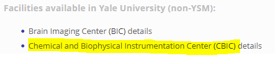
You will be able to book an instrument or order a service from the Home tab:


You can also request training for instruments that you have not previously used.



Y
Note: some instruments will not be listed as available to book in PPMS until after you have received training. If you have already been trained by CBIC staff and a system is not available to you, please contact CBIC staff.
Confirm your account and login to PPMS
Clicking on the link to PPMS https://ppms.us/yale/start/ will bring you to the Start Page.
If you do not have a PPMS account:
- If you are a Yale user, follow these instructions.
- If you are an external user, follow these instructions.
Verify Your Group
Log into your PPMS account and select Profile:

Under the Profile section, verify the Group listed is correct. If not, you will need to contact your business office (chemistry users: chemistry.finances@yale.edu ).
Note: You can only be associated with 1 Group at a time, but you can have authorization to use multiple COAs, if you do work for multiple Groups.
Verify your COA(s)
All services requested through PPMS require the use of an account that has been authorized for your use by your department.
- To see individual COA and split accounts that are authorized for your use, scroll down in the Profile to the “Financial Accounts available for use:” section.

- Verify that the COA(s) you wish to use are listed in your list of available accounts.
- If the required COA authorization is not available, proceed to the next section to request authorization. If you need access to a split authorization, please contact your department directly to request this authorization be created.
Request authorization to use a COA.
- Scroll down in the Profile to the “Request authorization to use a financial account:” and click on the “New account authorization request” button.

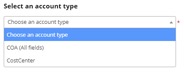
- From the drop down, select COA (All fields).

- Then click in the box to search for an account and enter the COA you wish to use.

- After selecting the COA, click on the Save button.

If the COA you wish to use is not already created in PPMS, you will need to click on “Create a new account”:

Fill out all the required information. Cutting and pasting the values can sometimes cause errors and suggest that the COA is invalid. Manually typing the characters for each field will overcome this. For many types of funding, the “company code” is CO01 that uses the letter O followed by the number zero.
Your business office will receive notification to approve this authorization request. Once they have approved your ability to use this COA, your PPMS account will become fully active. If you’ve checked with your lead administrator and they have not received the approval request, then please contact PPMS@yale.edu for further assistance. Please note that only the business office can approve COAs. Unfortunately, core facility staff are unable to add any billing information for you in the system, nor override the system to make bookings on your behalf without an approved COA associated with your account. If you have problems, please contact your business office (chemistry users: chemistry.finances@yale.edu ).